Netipam
Netipam Features Overview
Netipam is designed for people who want more than an IP list. Track devices, see upstream links, surface alerts, and keep your home or office network crystal clear. Netipam comes with a rich set of default features, with the goal to grow these features to meet user request and demand. We want this to be built by the users, for the users.
At this time, Netipam is UniFi centric. Netipam pulls client and device information from the UniFi controller (either the gateway or UniFi OS) and uses that information to build an IPAM, Network Topology, device and client connection details and status, and more. In a future release, we will be also adding UniFi Protect integration and some Proxmox integration as well. Below is an overview of the many features within Netipam.
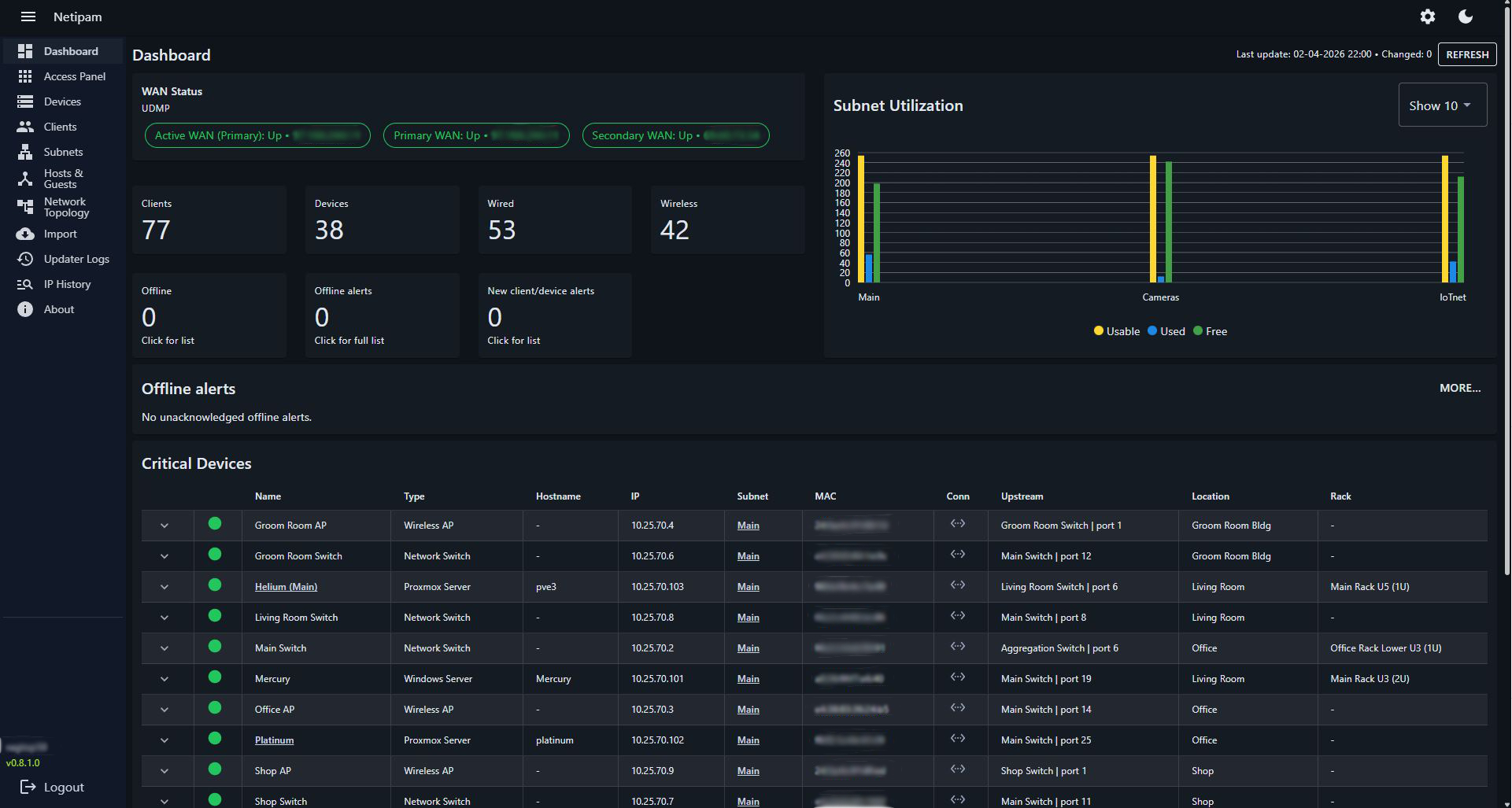
- Primary and secondary WAN with status of each
- Subnets overview with utilization charts
- Offline alerts
- Critical devices list with device information and status
- New device alerts
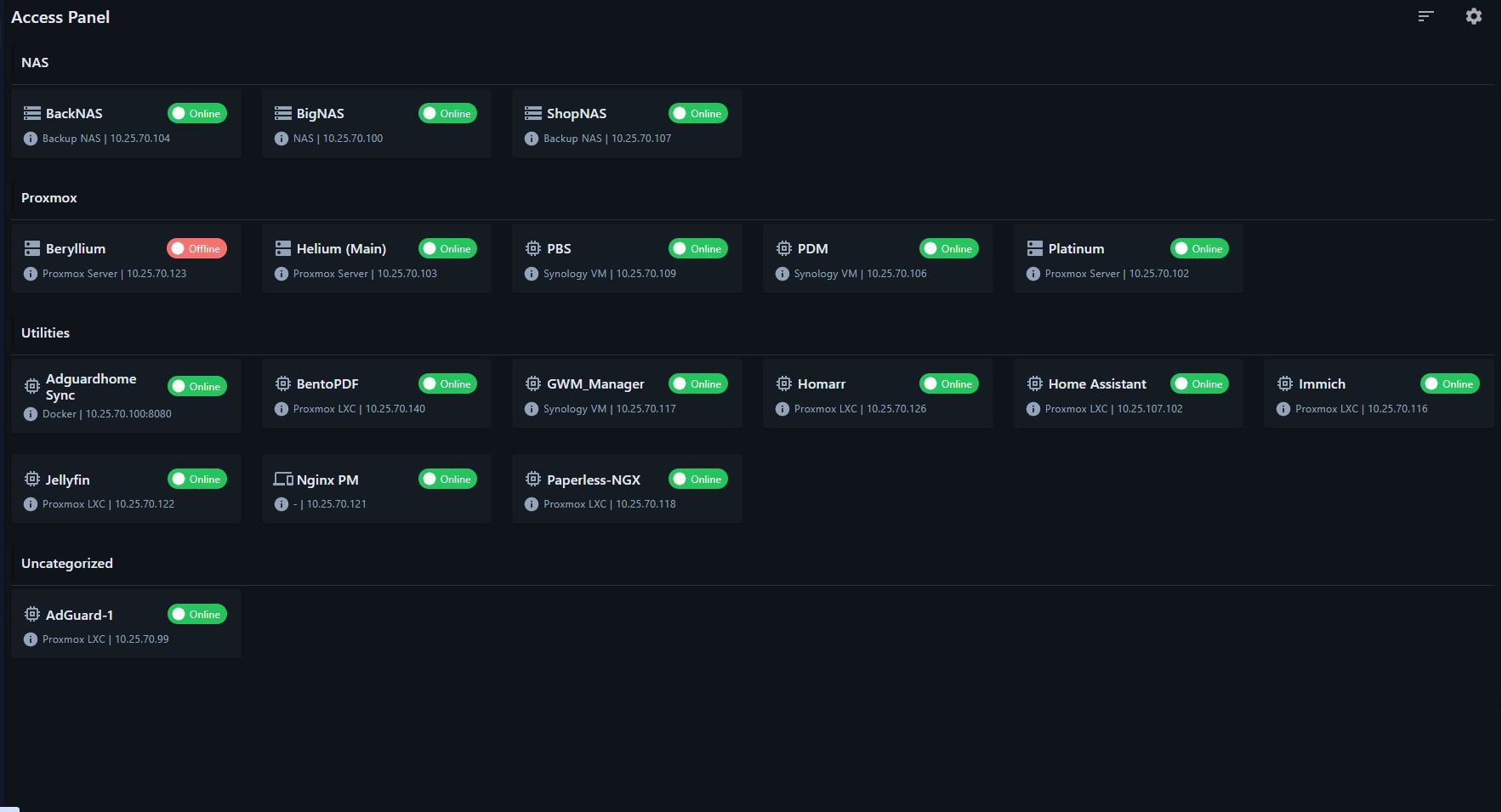
Tiled access panel to allow easy access to clients and devices. Each client/device can have an access link (URL) set. If a a client/device has an access link set, it will show on the access panel page. The access panel page is customizable and can be arranged by access categories.
Much the way UniFi differentiates clients from devices, Netipam imports everything that is not a UniFi device from UniFi as clients and gives the user the option to set "client types", which can be set as devices to give addition or unique tracking data. Devices such as servers, computers, switches and more can be segregated with additional tracking data, such as asset # and acquisition data.
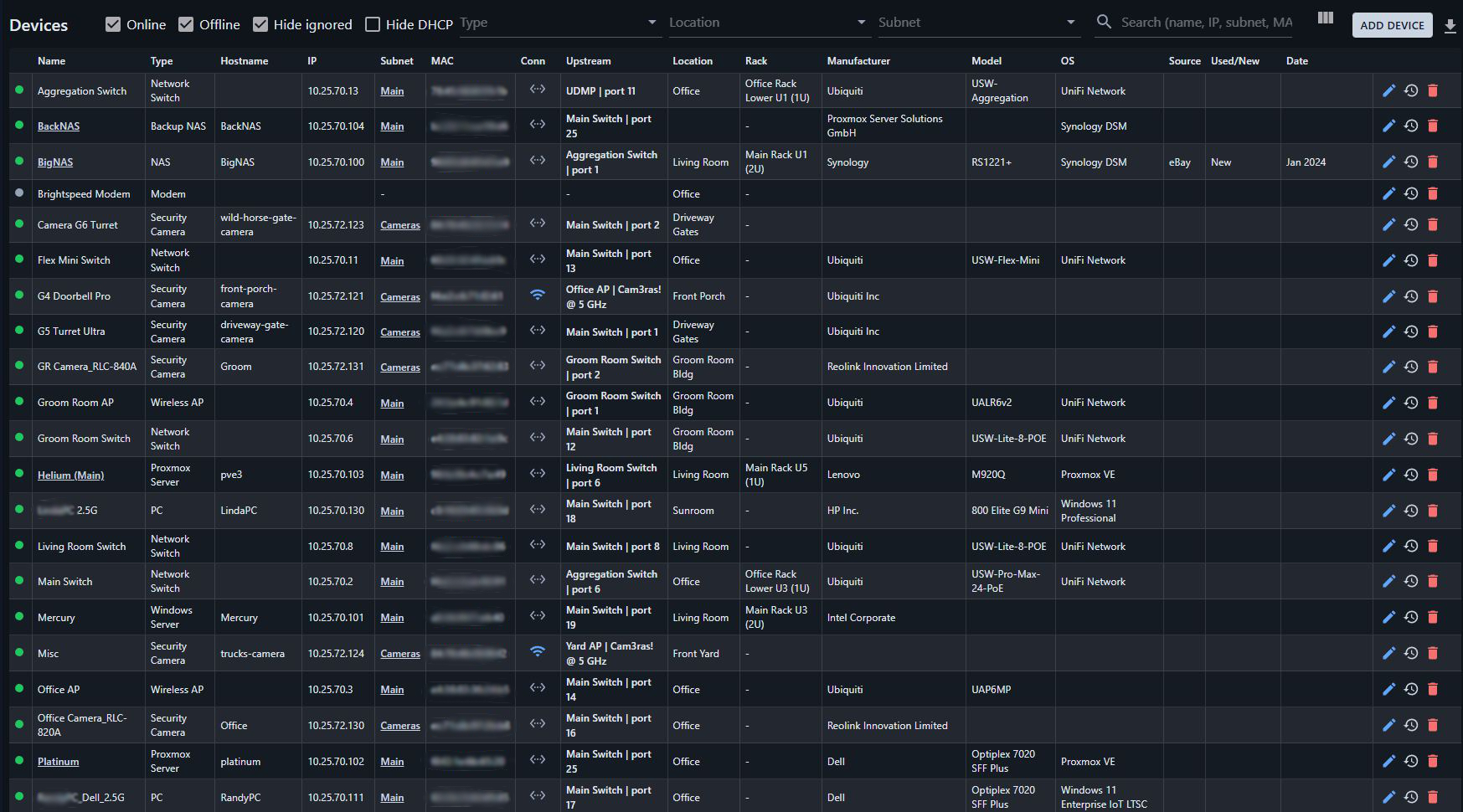
List of all devices. Devices can be set as devices through unique "client types". Devices can then also be set as a "host" which will allow the device to be set as the parent of the guest clients. This allows visualization of hosts and their guests on the Host & Guest page. On the Devices page, the following information is displayed:
- Online status
- Name (If the device has an access link set, the name will be a clickable link)
- Type
- Hostname (as pulled from UniFi, can be edited)
- IP address
- Subnet (subnet name with a clickable link to the subnet details)
- MAC address
- Connection (wired or wifi, with colored code for 2.4GHz, 5GHz, or 6GHz). Tooltip also gives SSID
- Upstream device (Gateway or switch (with port number), access point (with SSID and GHz)
- Location
- Rack (Rack name, position and size)
- Asset #
- Manufacturer
- Model
- Operating System
- Source (source when acquired)
- Used/New (Used or new when acquired)
- Acquire date (this helps easily give an idea of a devices age)
- Edit, history and delete options
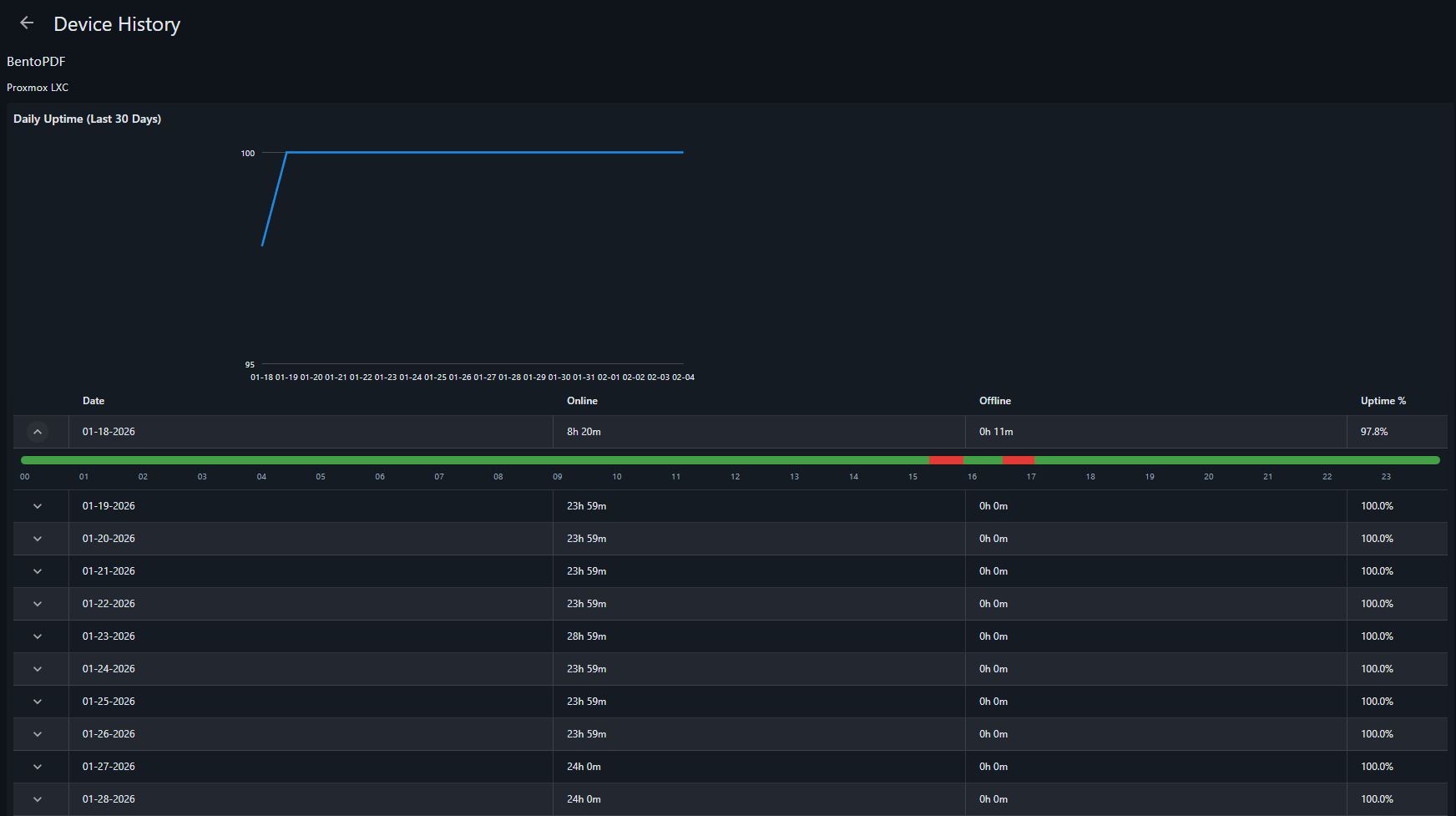
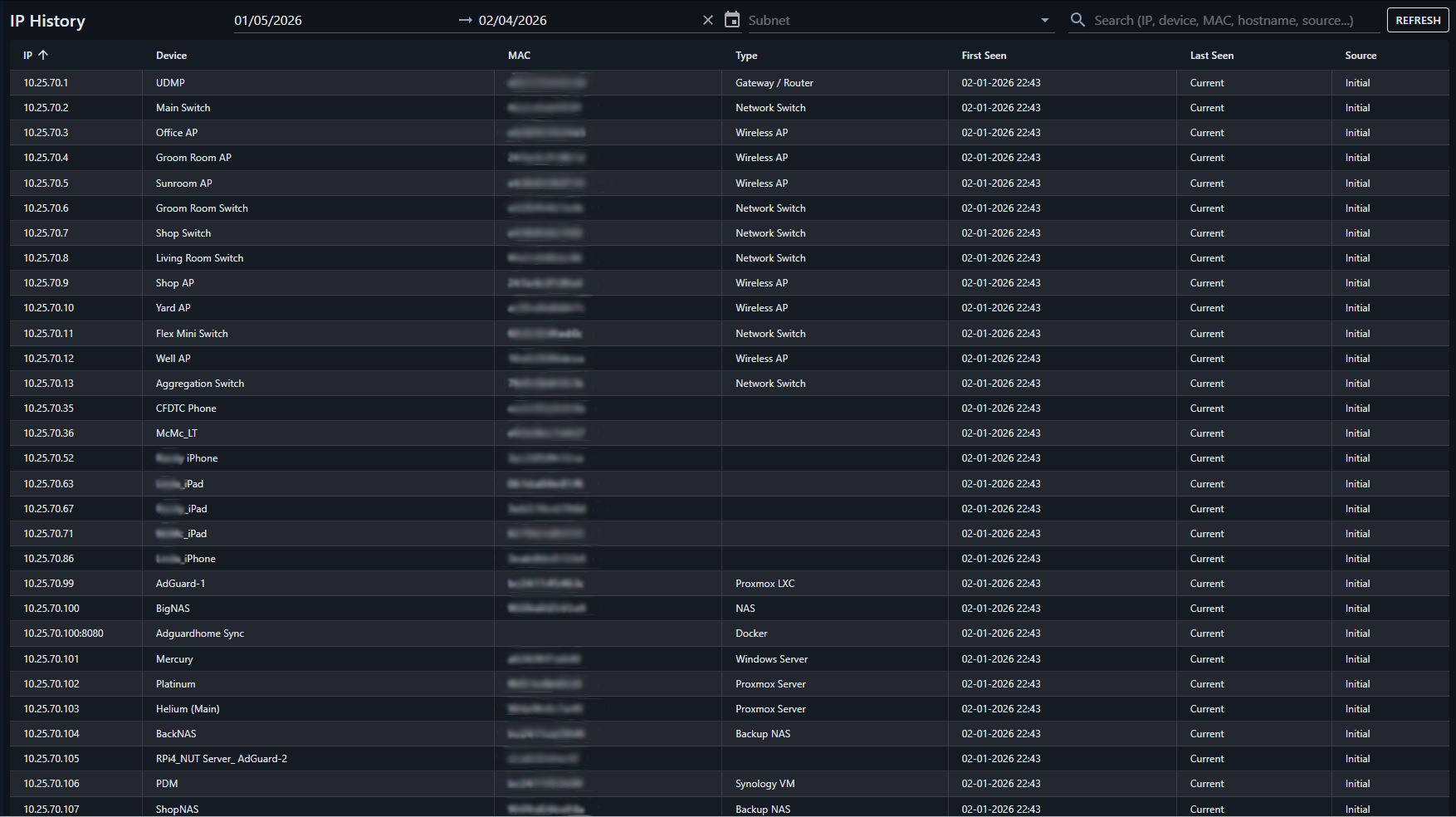
The history option shows the online/offline history of each device, with a 30 day chart and timeline for each 24 hour period from the past 30 days. There is also a list of status events from the past 30 days detailing when the device went online and offline. The history view also gives an IP history for a device showing what IPs the device has utilized.
There are export options to Excel.
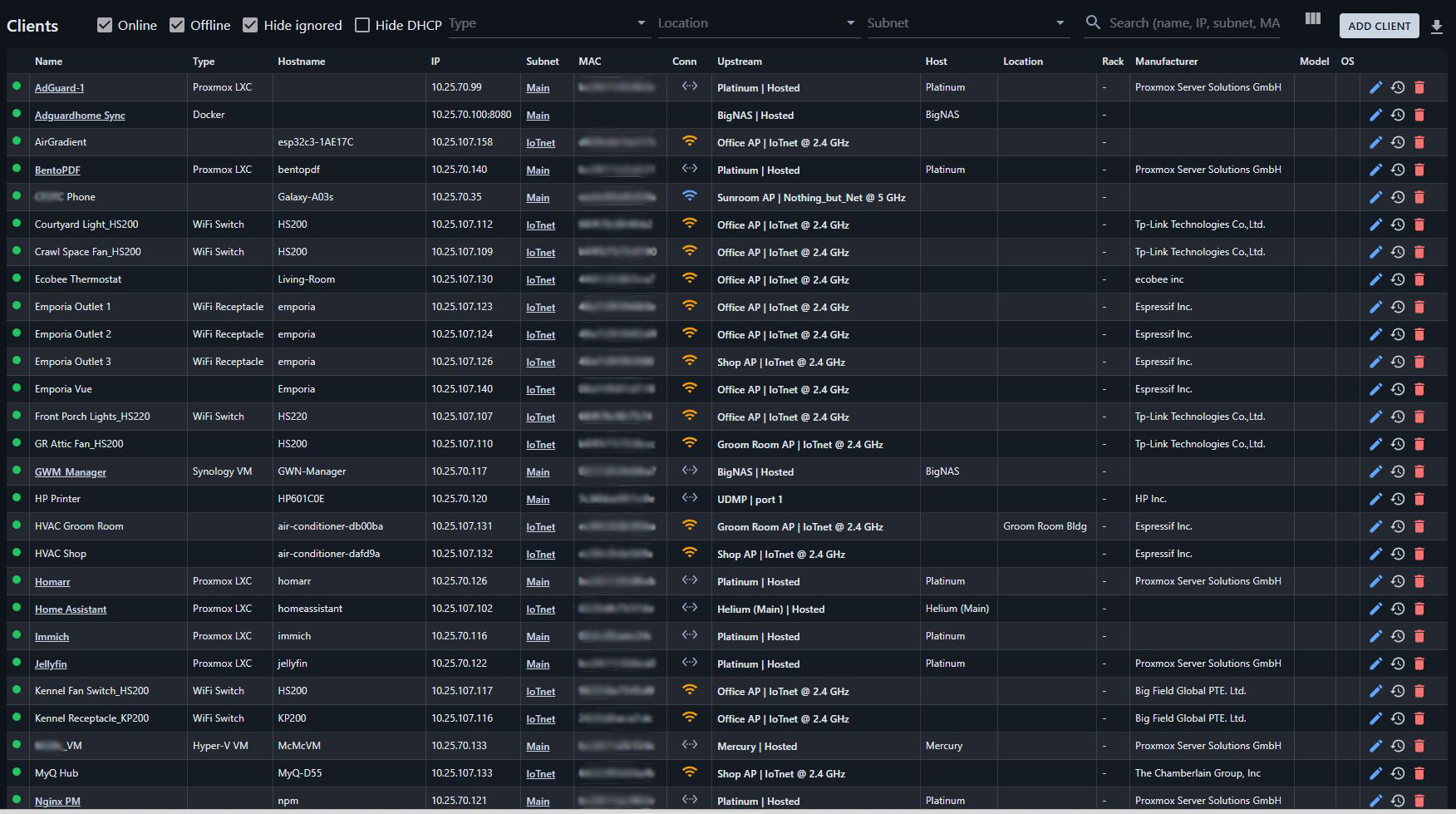
List of all clients. On the Clients page, the following information is displayed:
- Online status
- Name (If the client has an access link set, the name will be a clickable link)
- Type
- Hostname (as pulled from UniFi, can be edited)
- IP address
- Subnet (subnet name with a clickable link to the subnet details)
- MAC address
- Connection (wired or wifi, with colored code for 2.4GHz, 5GHz, or 6GHz). Tooltip also gives SSID
- Upstream device (Gateway or switch (with port number), access point (with SSID and GHz)
- Host (if a host has been set)
- Location
- Rack (Rack name, position and size)
- Manufacturer
- Model
- Operating System
- Edit, history and delete options
The history option shows the online/offline history of each client, with a 30 day chart and timeline for each 24 hour period from the past 30 days. There is also a list of status events from the past 30 days detailing when the client went online and offline. The history view also gives an IP history for a client showing what IPs the client has utilized.
There are export options to Excel.
The Subnets page details the subnets setup on your network.
- Subnet name
- CIDR
- IP usable range
- Number of usable IP addresses
- Number of used IP addresses
- Number of clients utilizing IP addresses
- Number of devices utilizing IP addresses
- Number of offline clients/devices
- DHCP Range
- VLAN ID
- DNS
- Next Free IPs (outside of reserved or DHCP). Next 3 free IPs are listed
- Description
- Edit and Delete icons
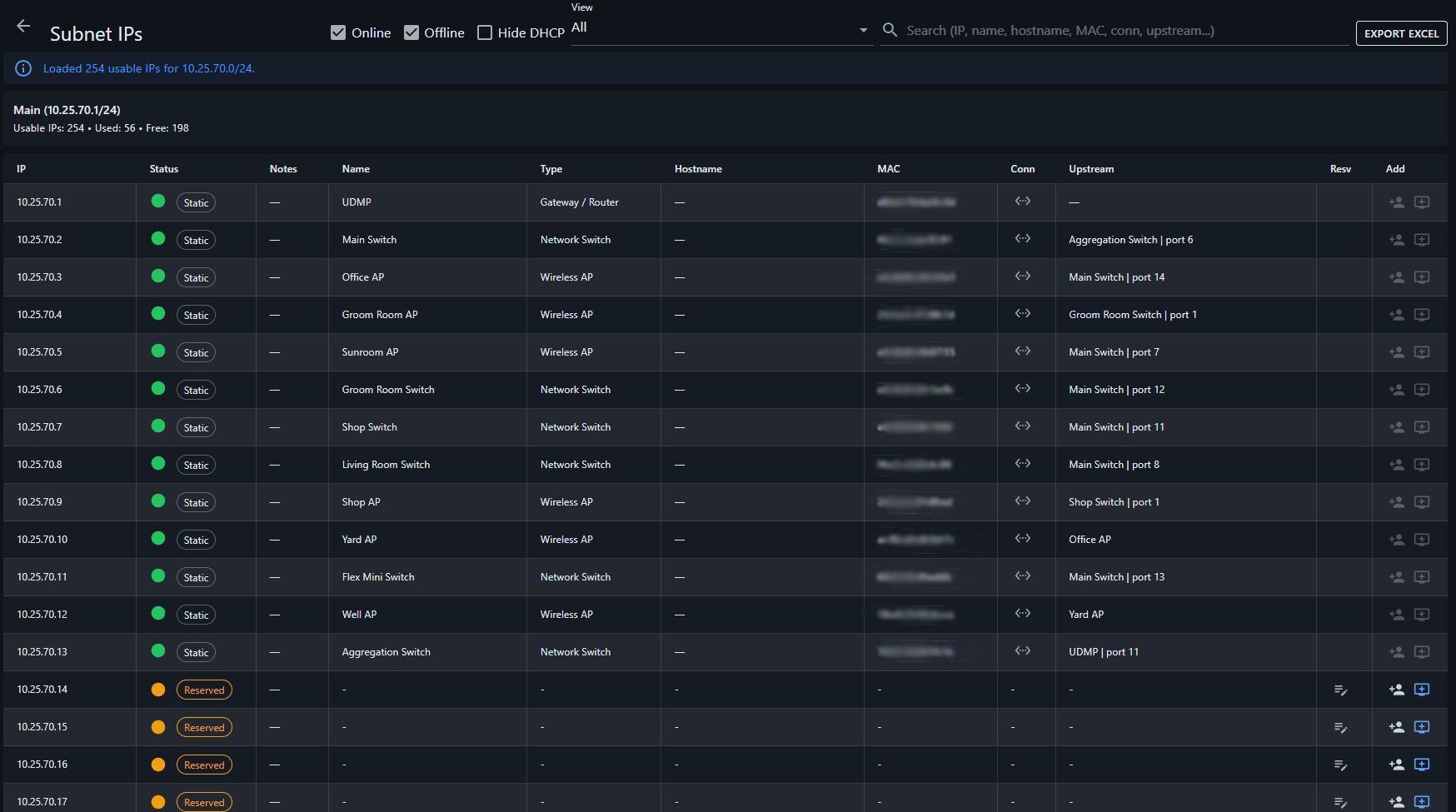
Each subnet can then be viewed in detail with the full IP address list, showing what client/device is utilizing each IP, or if the IP is reserved, DHCP or free for use. Each client/device also displays it's current online status.
Users can also manually add a cient/device utilization from the IP address page.
There are export options to Excel.
- IP usable range
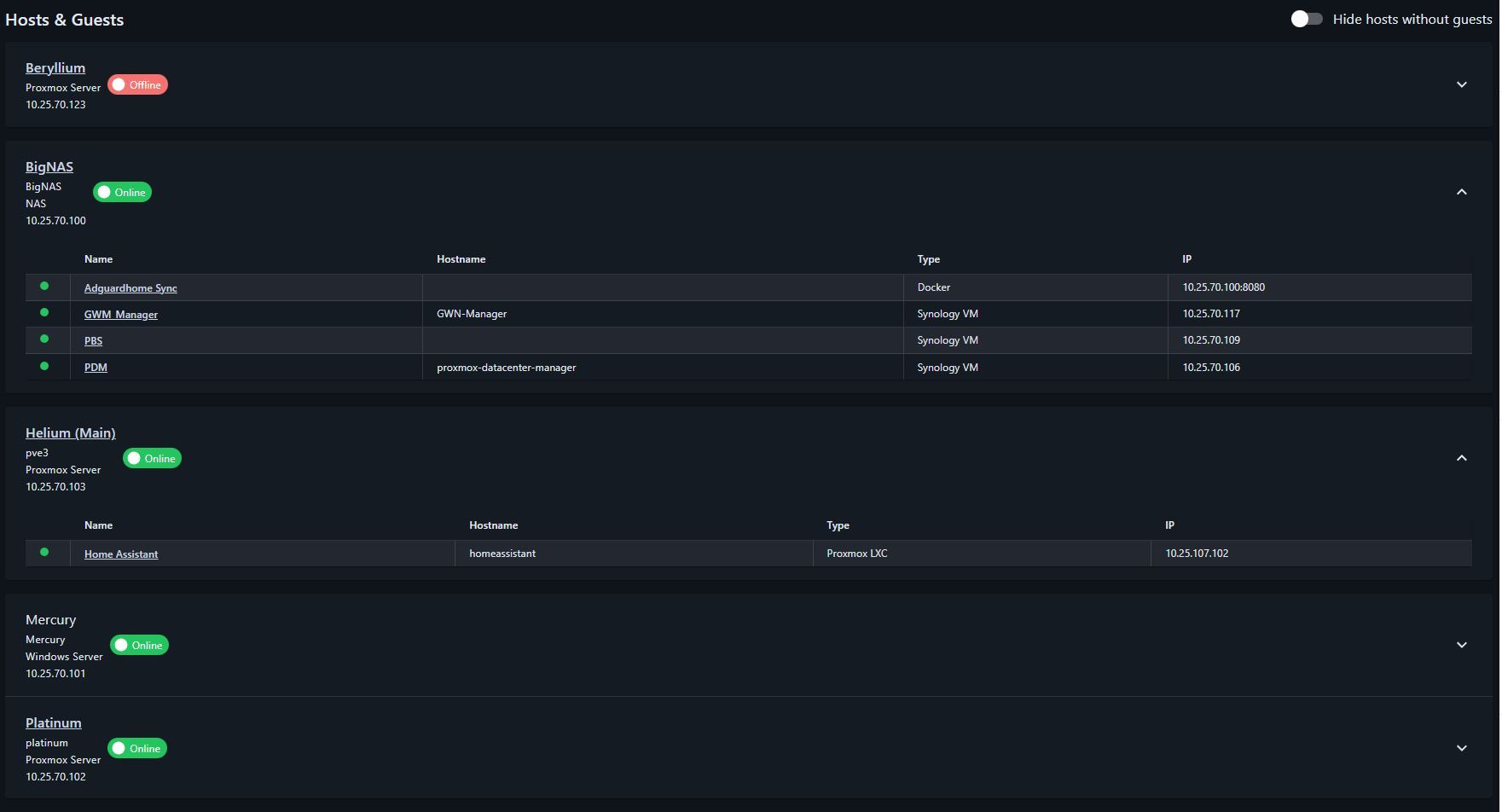
The Host and Guest pages displays a list of devices that are set as a host and their guest clients. The online status of the hosts and guests is also shown, along with the following information for each guest client:
- Online status
- Name (If the device has an access link set, the name will be a clickable link)
- Hostname
- Type
- IP address
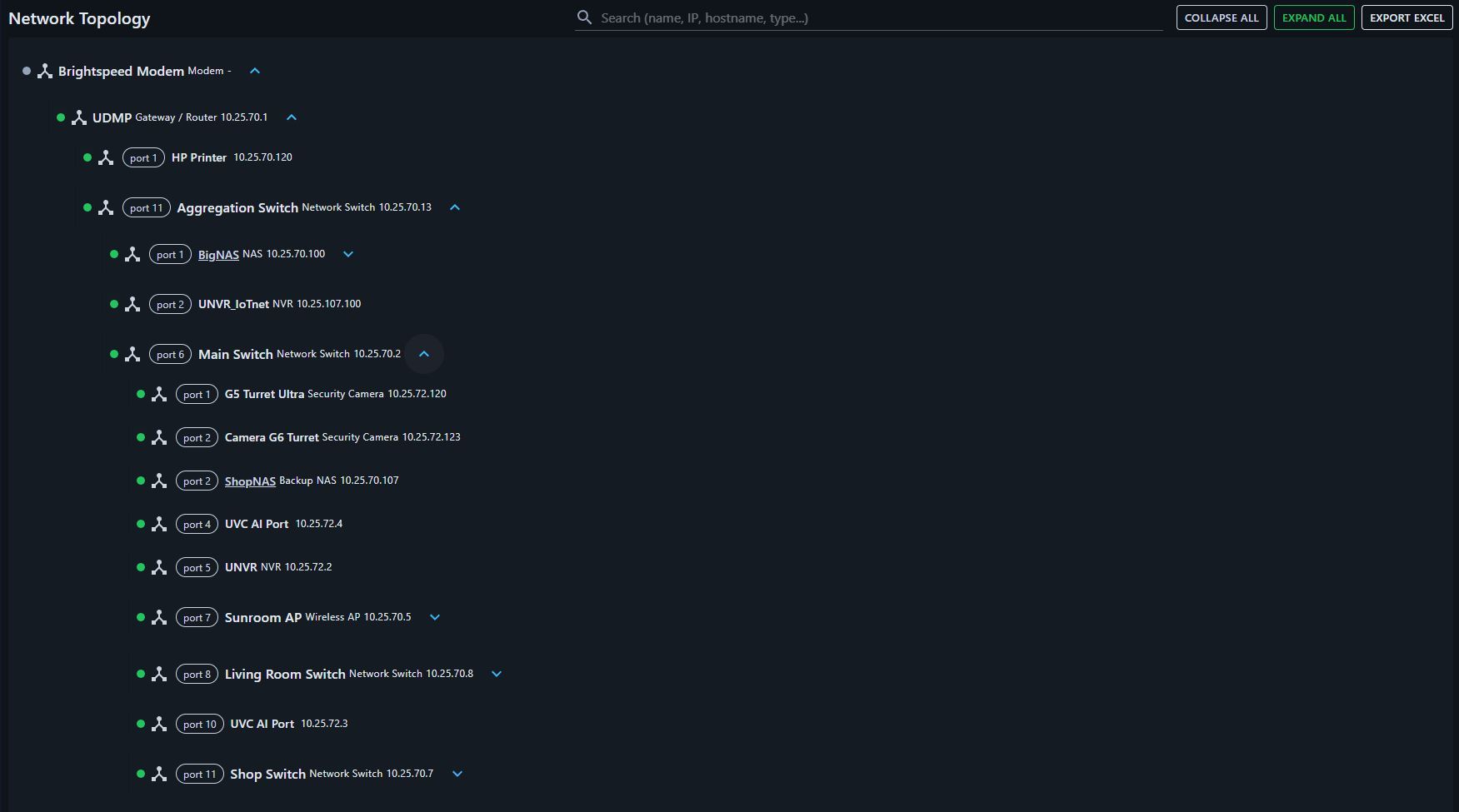
The Network Topology Page give a hierarchy of your network setup, allowing you drill down into your network layer by layer. By default, Netipam uses your Gateway/Router as the parent device but you do have manual control for situations where you may have a modem that is not directly part of the UniFi network (it can be manually added as a parent device) or if you ahve more than one gateway/router.
Each client/device shows the following:
- Online status
- Connection to upstream device (Wifi with tooltip details or port number)
- Name (If the device has an access link set, the name will be a clickable link)
- Type
- IP address
The network topology has an export option to Excel
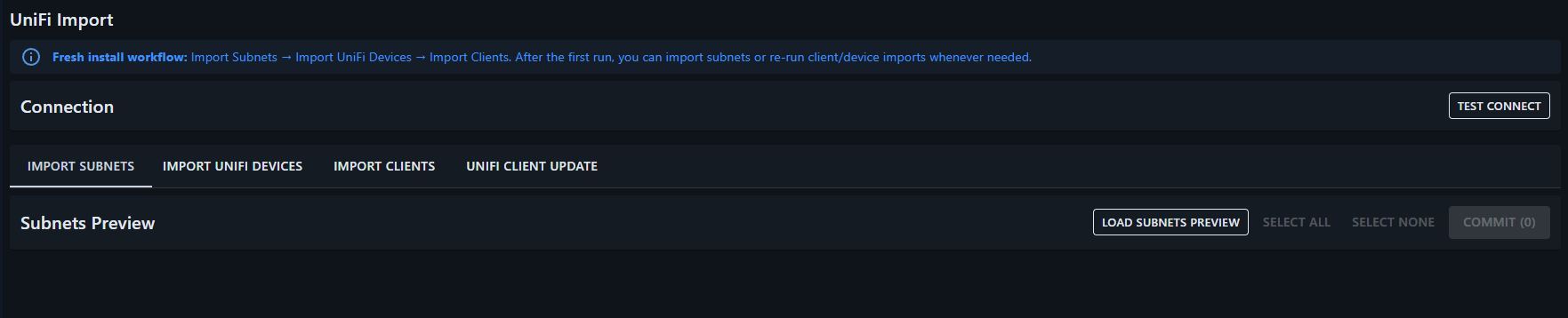
Import data directly from your UniFi gateway. Netipam utilizes a local view-only user so access to UniFi is controlled and safe. Netipam then checks for client and device changes on a defined interval to keep the data up to date. This allows offline alerts and new device alerts on the dashboard.
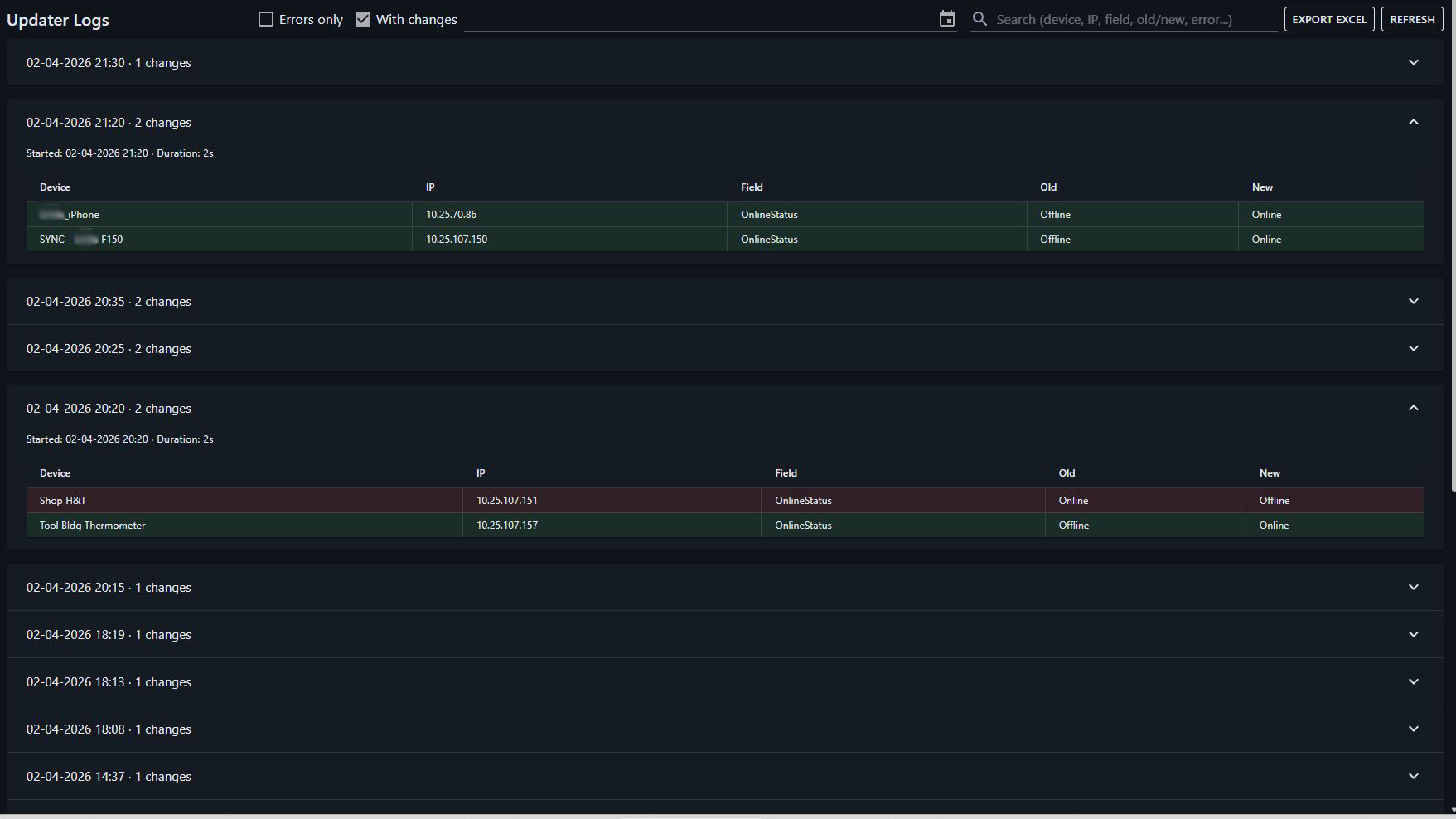
Each time the updater runs, a log is recorded to record any changes, if any. The updater log view allows users to see what changes occured and when.
IP History for devices and clients
Netipam Settings
- UniFi connection settings (url, API key or user, password)
- Enable/Disable UniFi updater
- Updater interval (seconds)
- Selective options for which client/device data fields can be updated by the updater
- Ability to manually run the updater (even if the automatic updater is not enabled)
- UI refresh interval (helps to force data changes)
- Show/Hide WAN status on dashboard
- Date format
- Application name
- Theme
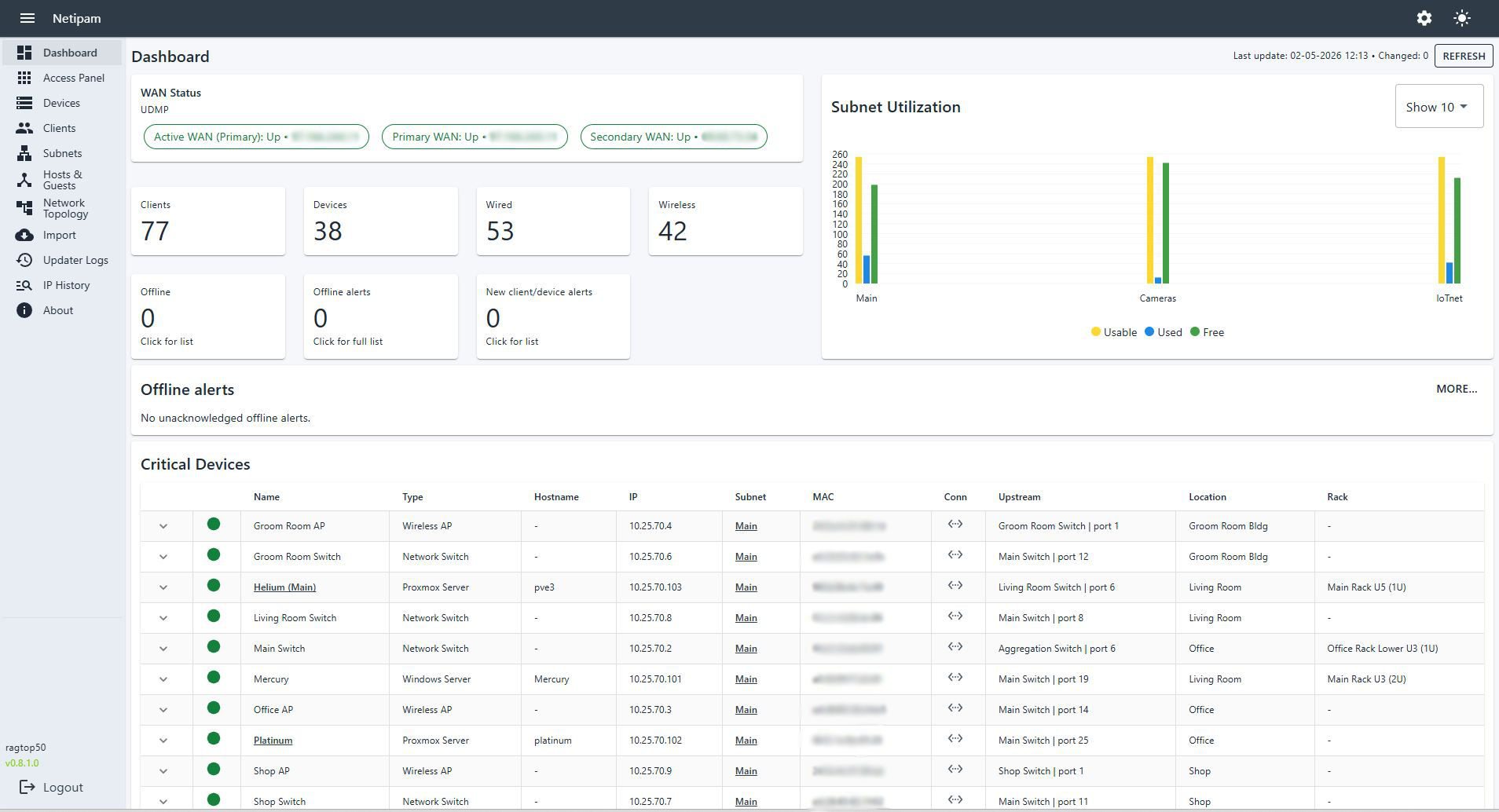
- Light/Dark mode (in app bar at top of pages)
- Backup
- Restore
- Reset Imported Data
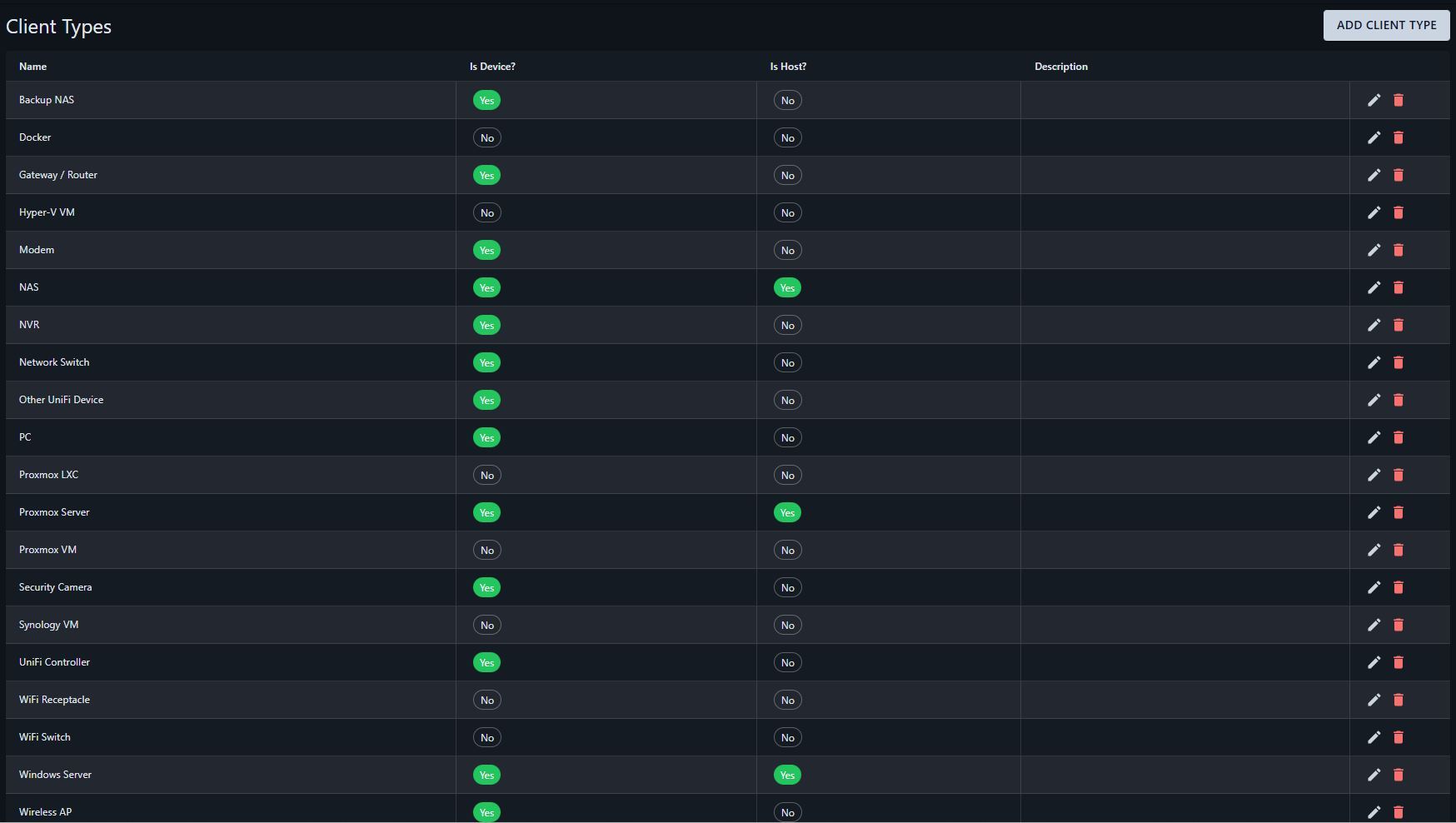
Netipam has the ability to set defined client types which allows clients to be defined as a device, and also allows easy search and filter by type.
Network devices imported from UniFI anotmatically get assigned proper predefined types such as Gateway/Router, Network Switch, and Access Point. Client types help give more clarity to what is on the network. Combined with other critical data such as location and rack, if an issue arises, you know what it is and where it is.
Netipam has the ability to assign locations to clients and devices. Locations are defined by the user.
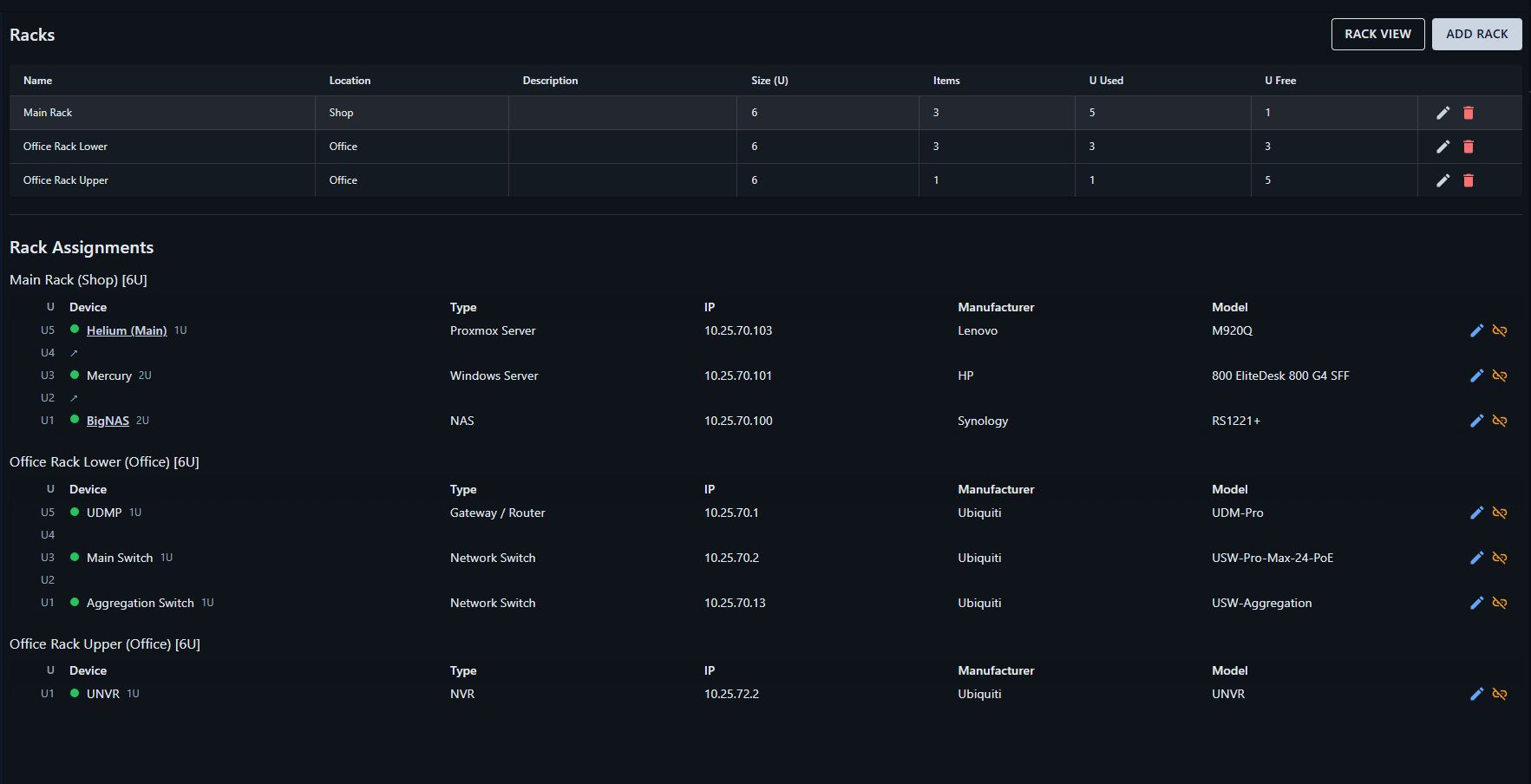
Clients and devices can be assigned to a rack. Racks are defined by the user, and details down to position and size are able to be defined for every client device in in a rack. The Rack page also gives a visualization of each rack.
Predefined user roles to limit access of users based on their role
- Admin
- Editor
- Viewer
Screenshots
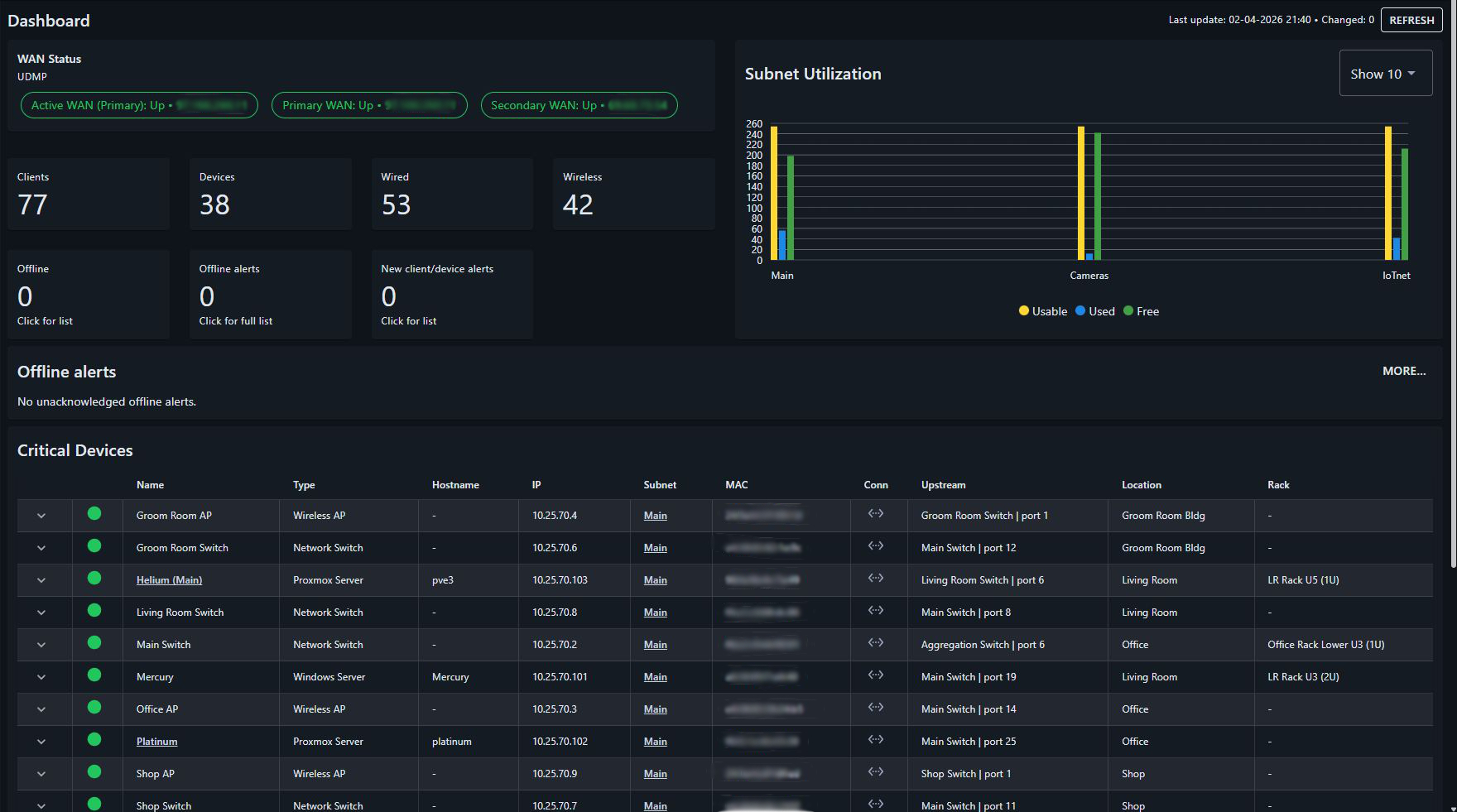
Dark mode and light mode, multiple themes